Around the Binder — every tab, what it holds
The Binder’s tabs, one by one: what each one holds, and where its Help page is.
StitchBlock Binder Tour: Patterns, Cut Sheets, Templates & More Watch on YouTube, bigger and with chapters
File → Binder (or the Binder button on the left rail) leaves the worktable and opens the Binder, where your documents are. The tabs are listed down the left side, in three groups. Each document prints on its own.
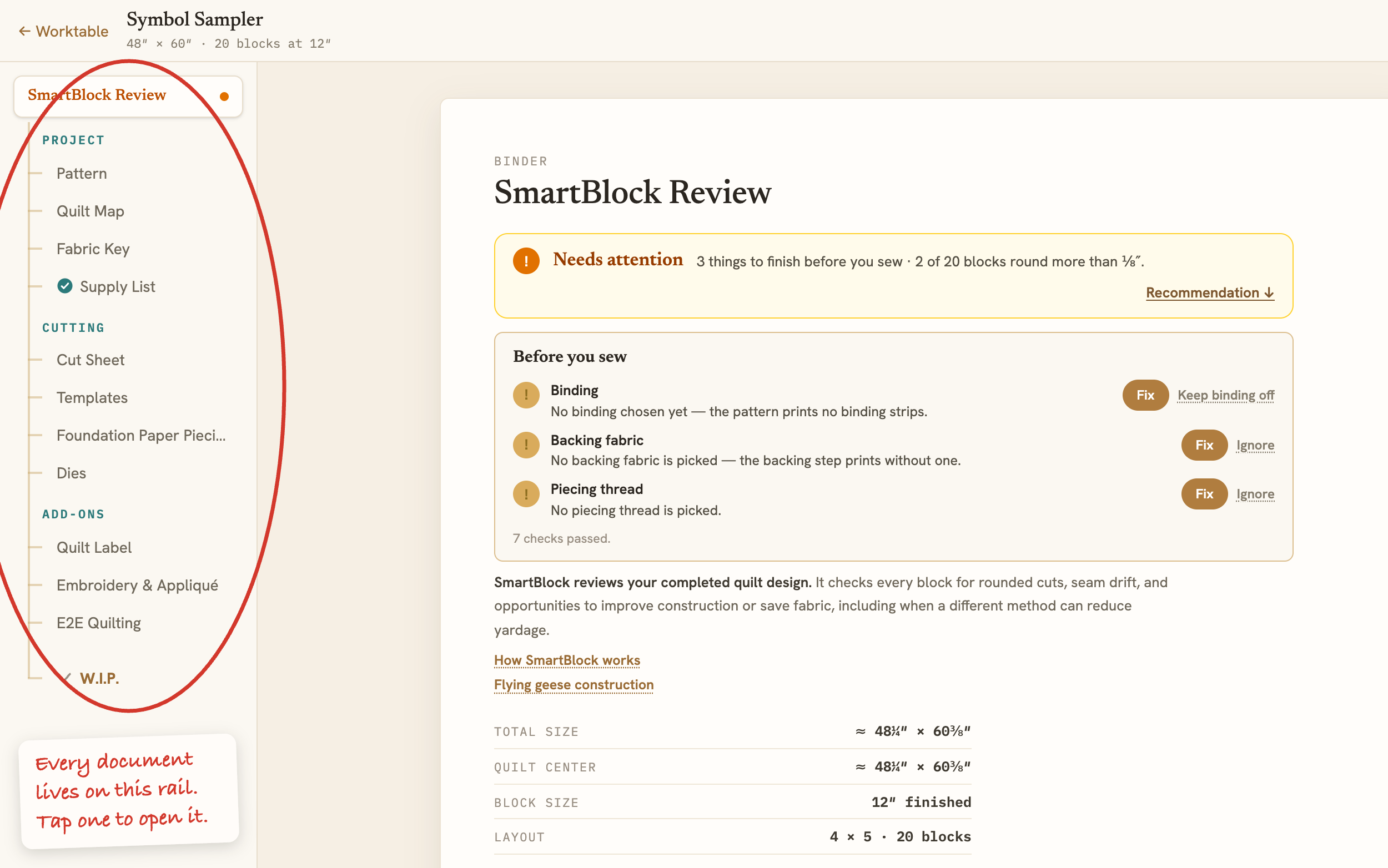
SmartBlock Review is the top tab. It reviews your finished design: which blocks have rounded cuts, how the seams meet, and where another method could save fabric. It is for reading on screen and does not print. See What is SmartBlock?
Under its banner, the Before you sew list shows what is unfinished. That can be an empty cell, a patch with no fabric, binding or backing not chosen, or a thread not picked. It also lists a binding thread picked before the binding fabric changed, and a block that cuts exactly from a precut but is placed at another size. Tap Fix to go where you make that choice. On a size row, Fix changes the block size for you. Tap Ignore to set a row aside on this design.
Project
Pattern is the whole pattern in one document, from the cover to the templates. See Which document is which? Quilt Map shows and prints the labeled quilt: block positions, a coloring book view, and an enlarged map for your design wall. Fabric Key is the lettered fabric list that every cutting page refers to. Color Guide is the Fabric Key with each fabric’s color in words: how to read it Supply List is what to buy: yardage, backing, batting and thread, with checkboxes that add to your shopping list.
Cutting
Cut Sheet has every rotary and scissors cut. On screen, tap the quilt to see one block at a time: Use the interactive Cut Sheet. Templates prints true-size template sheets: first the blocks that need them, then optional templates for the rotary-cut blocks. Print them always at 100%. Foundation Paper Piecing prints the papers. See which blocks paper piece, and how. Dies shows die-cutter owners which pieces a die can cut: the Dies tab.
Add-Ons
Quilt Label prints the label you design on the Add-Ons tab. See A label for the quilt back. Embroidery & Appliqué prints the placement map for your placed designs. E2E Quilting prints the hooping kit for an edge-to-edge set.
W.I.P.
W.I.P. is Work In Progress, where you keep track of what is done. Tap a block on its quilt map to mark it cut, then sewn. Under Fabric Cut, check off each fabric when you finish cutting it. A fabric from your stash then offers to update your stash quantities. More in Your stash and precuts.
Tip: Binder Settings, at the top right, has the pattern’s printing choices: designer credit, yardage rounding and the cover. See What do the Binder Settings control?