Tools of the Worktable — every button, what it does
The lookup page: both toolbars button by button, the Edit and File menus, and how the worktable's areas divide the work. Print it and pin it up.
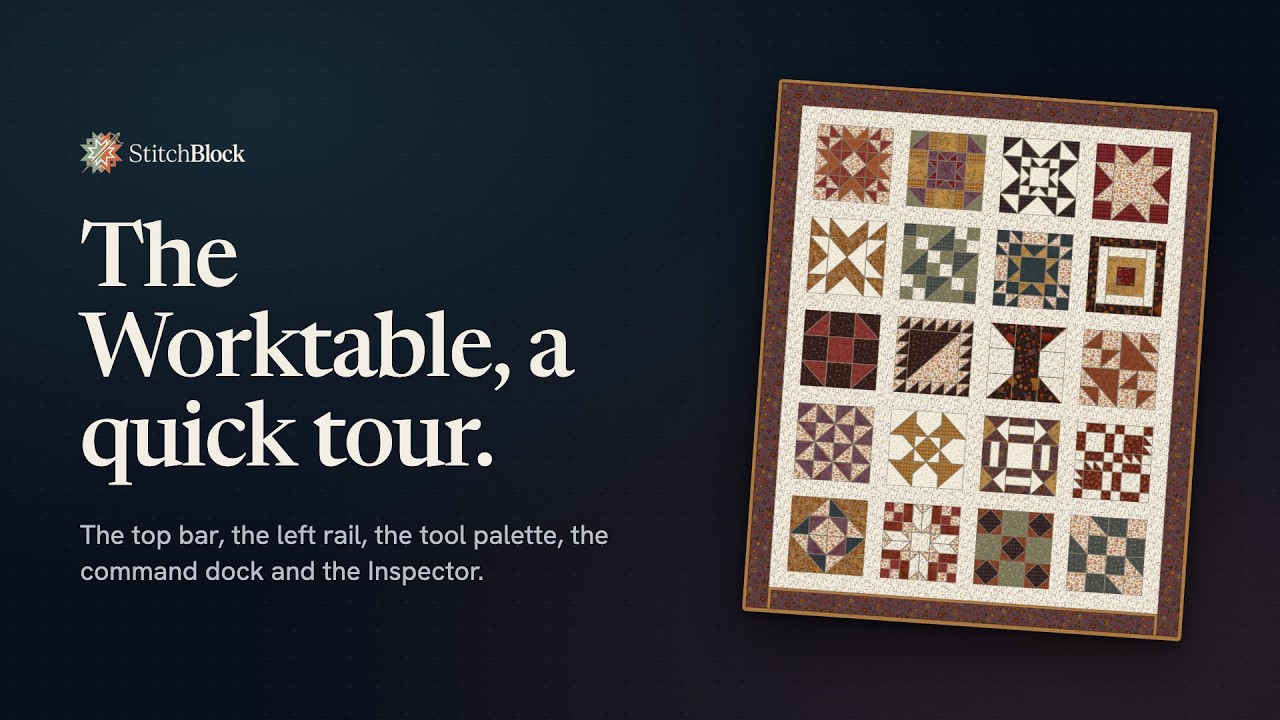
StitchBlock Worktable Introduction | Beginner Tutorial 01 Watch on YouTube, bigger and with chapters
Understanding the Worktable is the tour. This page is the one you come back to: every button and what it does. To print it and pin it over the sewing table, tap Print / Save this page… at the top. The colors on the buttons and pills have meanings too. See What do the colors mean across StitchBlock?
How the areas divide the work
Each area of the worktable has one job. The Edit menu up top holds the whole-quilt moves. The left rail is where you pick what you're about to put on the quilt. The floating tool palette sets what your next tap does. The dark command dock under the quilt has undo, zoom, rulers, the Front / Back slider, and the buttons that change what you see. And the Inspector on the right shows what is selected and holds the quilt's settings.
Tip: Pick up the Select tool first when you want to work on one block or design. Delete, Center, and Unmerge are gray until something is selected.
The tool palette: what your tap does


Select — Tap a block to select it. A ring appears, and the block buttons below act on that block. Tap again (or press Esc) to put it down.

Stamp — Select a block first, then Stamp copies it into every cell you tap, with the same fabrics, colors, and turn. With an embroidery design selected, it places a copy wherever you tap.

Fill — Fills every empty block in one tap with what you have loaded. With a fabric armed, that is a plain square of it in every empty cell, or every unpainted hexie, diamond, or triangle. With a block armed or selected, it is that block. Placed blocks stay put.

Fussy cut — Tap a printed patch, then drag to slide the print inside it. This is fussy cutting, planned on screen. It works on fabric-filled appliqué designs too.

Remove fabric — Tap a painted piece and it goes back to unpainted: gray, with no fabric. Then one question: remove that fabric Everywhere it is used, or Just this piece. The fabric stays in your Fabrics panel either way, ready to paint again, and Undo puts it back. To take a fabric out of the project itself, use the ✕ on its row in the Fabrics panel.

Move — Drag blocks from cell to cell. Placed embroidery designs drag freely with any tool.

Rotate 90° — Stays on like the tools above it: every block you tap turns a quarter turn, and tapping the same block again turns it again. Placed embroidery designs turn the same way. A block that is already selected turns the moment you tap the button.

Flip — Mirrors every block or placed design you tap. Tap again to mirror it back. A selected block mirrors the moment you tap the button. Flip is not a turn: no amount of rotating changes which way a block spins, but one flip does. A pinwheel that spins clockwise spins counter-clockwise after a flip. Flipping a geese block sends the geese the other way without turning the rest of the block. That is how you make a block’s mirror twin.

Delete — Takes the selected block out of its cell (the Del key does it too).

Center — Centers a selected embroidery design. Tap it and choose Center in this block or Center on the quilt. It is gray until a design is selected.

Merge cells — Tap the cells of a rectangle, or drag across them with a mouse. Then tap Merge on the chip that appears over the quilt, and the cells become one bigger space. Keep going for more merges, and tap Done when you finish. Tap an existing merge to split it back. See Mix block sizes on one quilt.

Unmerge — Select a merged block and tap Unmerge. The covered cells come back exactly as they were.
Tip: A gray button is not broken. Delete, Center, and Unmerge need a selection: pick up Select and tap the block or design. Merge is gray outside the straight and sashed sets. On a block that is the same both ways, like a Nine Patch, Rotate and Flip can look alike. On quilts built from one repeated shape (bricks, triangles, diamonds, tumblers, hexies, Baby Blocks cubes), Rotate and Flip have nothing to turn. You design those by painting the pieces directly.
The command dock: the worktable's controls


Undo — Takes back the last move (Ctrl+Z, or ⌘Z on a Mac).

Redo — Puts it back (Ctrl+Shift+Z / ⇧⌘Z).

Zoom out / Zoom in — Step the canvas farther or closer. The number between them shows the zoom.

Fit — Fits the whole quilt in the window and re-centers it.

Rulers — Inch rulers along the canvas edges. Tap on, tap off.

Front / Back — Flips the quilt over. The back is where you see the backing, its seam diagrams, and the quilt label.

Quilting preview — Shows or hides the quilting layer on the picture.

Embroidery & appliqué — Shows or hides your placed embroidery and appliqué designs.

Bed — Shows or hides the bed drawn on the quilt. It is gray until you pick a bed size. See Sizing a quilt for a bed.

Black & white — Takes the color out of the quilt so you can read its values: the lights, mediums, and darks it shows from across the room. Tap again for color. Nothing on the quilt changes; the desk, rulers, and your Fabrics panel stay as they were.

Ombré — Fades your fabrics light to dark across the whole quilt: top to bottom, corner to corner, or in rings from a point. Pick two or more fabrics in the Fabrics panel: a swatch, or a collection folder for the whole line. Every fabric is one band. With only a few, choose Blended seams so the bands mix where they meet. The background keeps its fabric unless you choose Fades too. It looks best on simple blocks with no sashing. Sashing breaks up the fade, and busy blocks hide it.

Scatter Fabrics — Turns the dock into the Scatter bar: pick a collection or a handful of fabrics (or nothing at all) and deal them across the quilt. See Scatter Fabrics.
Tip: The show and hide buttons on the dock all work the same way: tap to turn one on, tap again to turn it off.
Band is on the paint pill, which appears at the top left of the canvas when you arm a fabric. It is the third reach, after This block and Matching blocks. Tap Band and the Bands bar opens under the quilt. One tap then paints a whole round, row, or diagonal. See Bands: paint a whole round, row or diagonal in one tap.
The Edit menu: whole-quilt moves
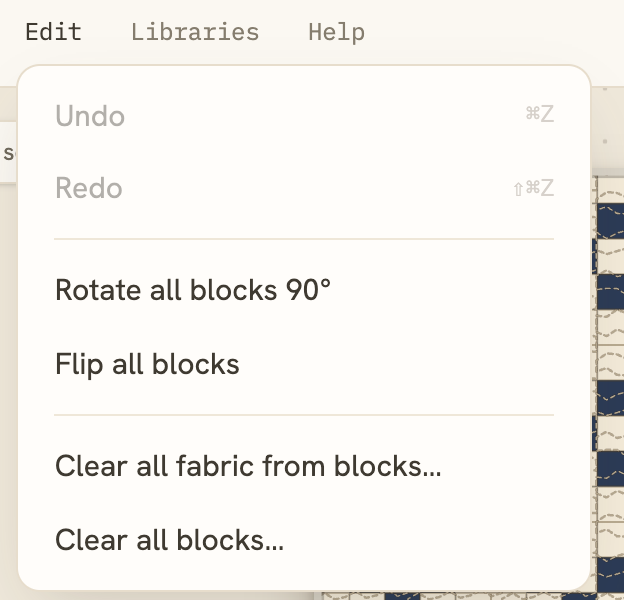
Six buttons, top to bottom. Undo takes back the last move and Redo puts it back. They are the same pair as on the dock, with their shortcuts beside them.
Rotate all blocks 90° and Flip all blocks turn or flip every block on the quilt in one move, for when the whole quilt should change direction together. The palette's Rotate and Flip do one block at a time. They are different moves. A turn keeps the way each block spins, so a clockwise pinwheel still spins clockwise. A flip reverses it. Use Flip all blocks to send every goose the other way, or to spin every pinwheel the other direction.
Clear all fabric from blocks… takes every block on the quilt back to gray, starter colors included, and leaves the blocks in place. You can then see what has not been painted yet. The fabrics stay in your Fabrics panel. Clear all blocks… empties every cell. Both clears ask before they do anything, and Undo brings it all back.
The File menu: the project itself
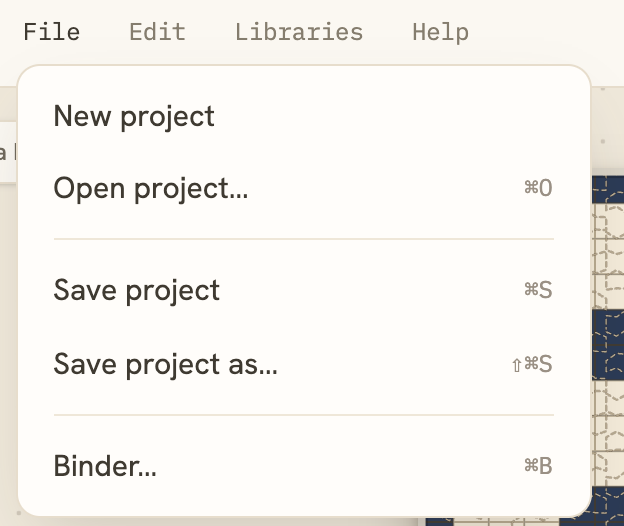
New project starts fresh. Open project… opens a project file from your device. Save project and Save project as… save your project to a file, the copy you own. See Where does my work live? My quilts (cloud)… lists the quilts saved to your account, from any device. And Binder… leaves the worktable for the pattern documents you print.