Your saved blocks — the My Blocks shelf
Where the blocks you make live: place them anywhere, tag them, and they follow you from project to project.
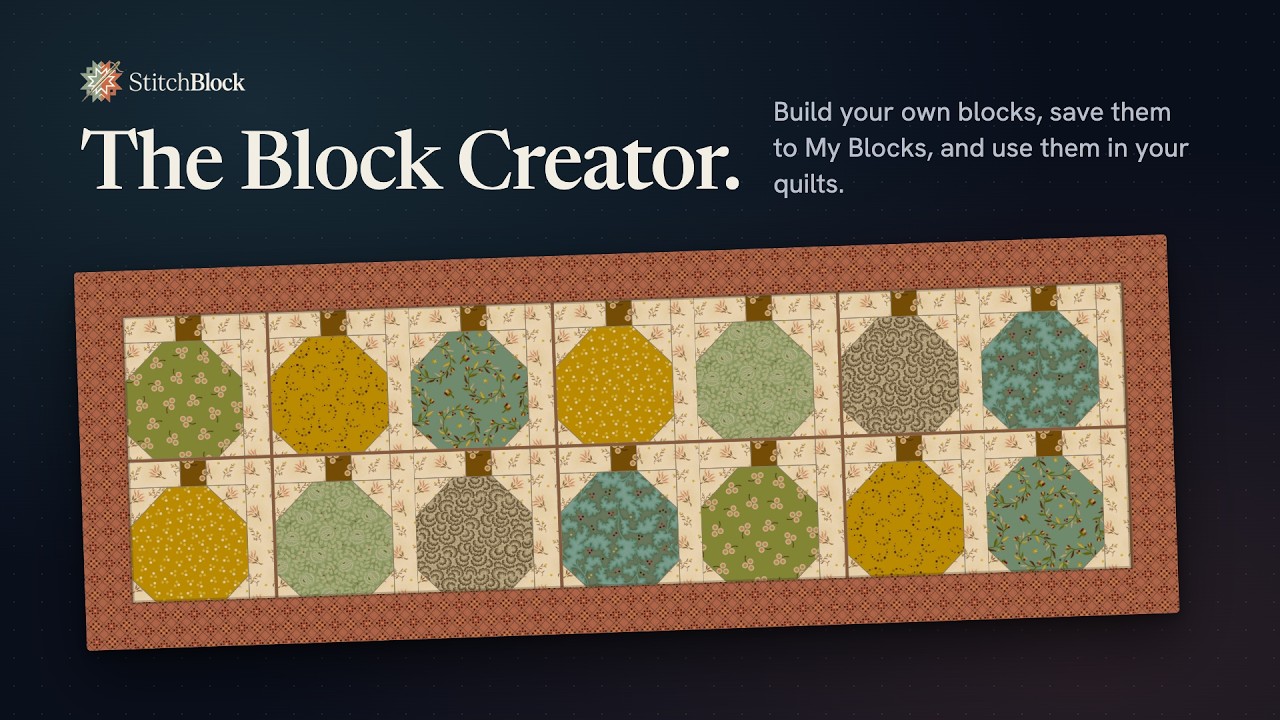
StitchBlock Block Creator: Block Builder, Paths Builder, Remix & My Blocks Watch on YouTube, bigger and with chapters
Every block you make yourself lands in one place: My Blocks, the first shelf in the Block Library's sidebar. That is a Block Builder build, a Paths Builder draw or a saved Remix. See the Block Creator and Libraries → Blocks.
Your blocks work like the blocks that come with the app. They place, arm, and paint the same way, and the cutting list and yardage count them exactly the same way. See Place blocks on the quilt.
They stay with you
The shelf belongs to you, not to any one project. Start a new project and your saved blocks come along. Like your fabric library and stash, they're part of your studio. They are also saved in your project file when a design uses them, so a shared project brings its blocks with it.
Tags and search
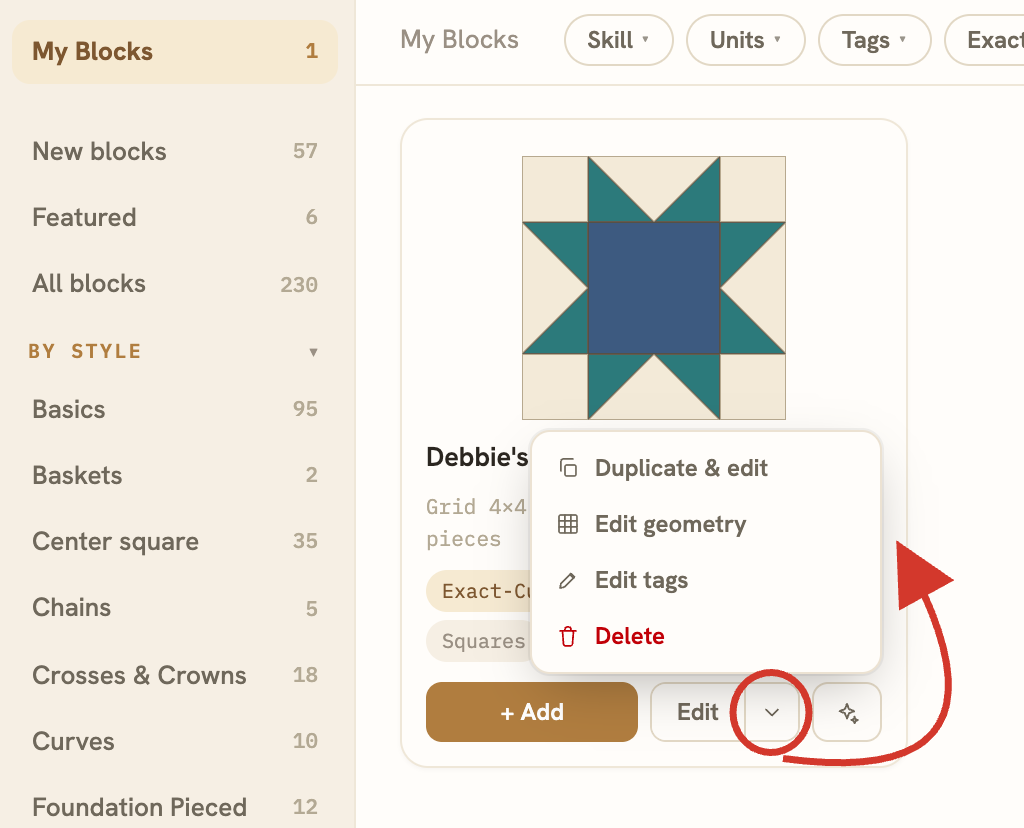
A saved block can carry your own tags. Each card has an Edit button with an arrow beside it. Tap the arrow and choose Edit tags. Tags are searchable in the library, so “gift,” “stars,” or “guild swap” calls up exactly the shelf you meant.
Removing a block
Tap the same arrow and choose Delete. The block leaves your saved blocks for good. Quilts that already use the block keep their copies, so nothing you've designed changes.
Tip: In the Block Builder, Save to My Blocks and add to this project also puts the block in this project’s Blocks panel. You still arm it and paint it onto the quilt.