Create your own blocks — the Block Creator
Three ways to make a block: the Block Builder, the Paths Builder, and Remix.
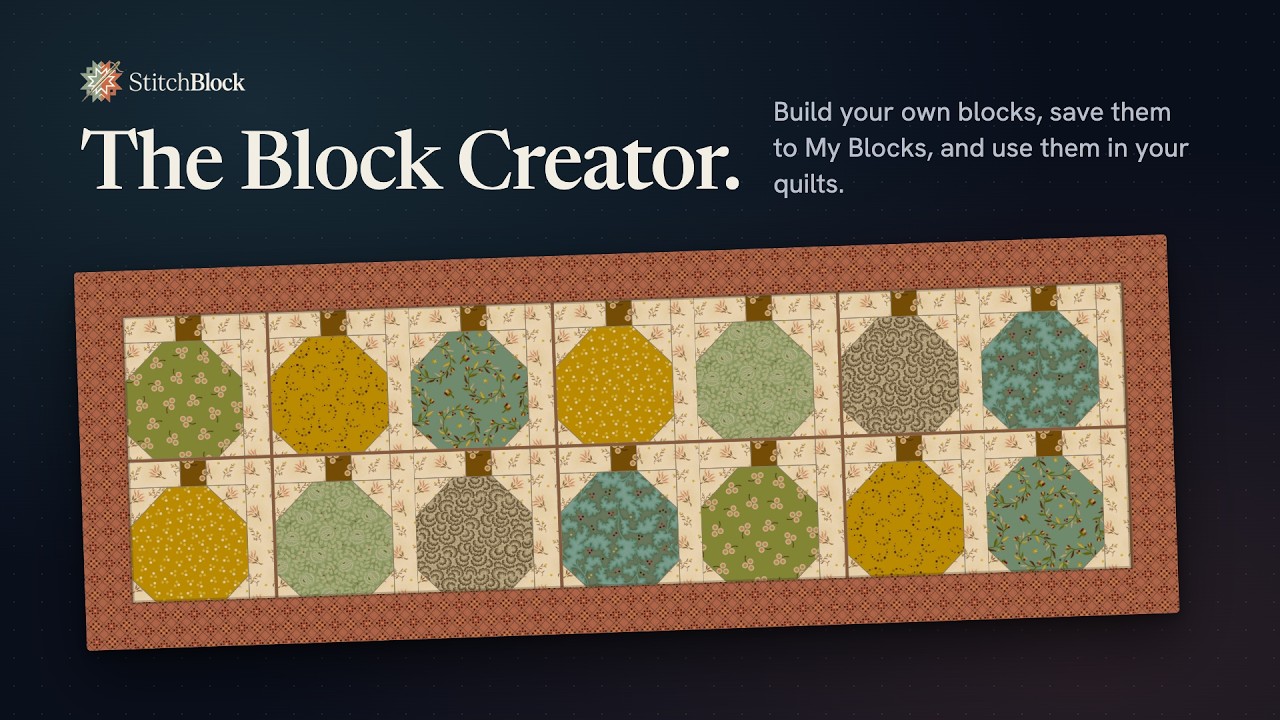
StitchBlock Block Creator: Block Builder, Paths Builder, Remix & My Blocks Watch on YouTube, bigger and with chapters
Open the Block Library from Libraries → Blocks and tap the Block Creator button in its header. It offers three ways to make a block, from most guided to most free:
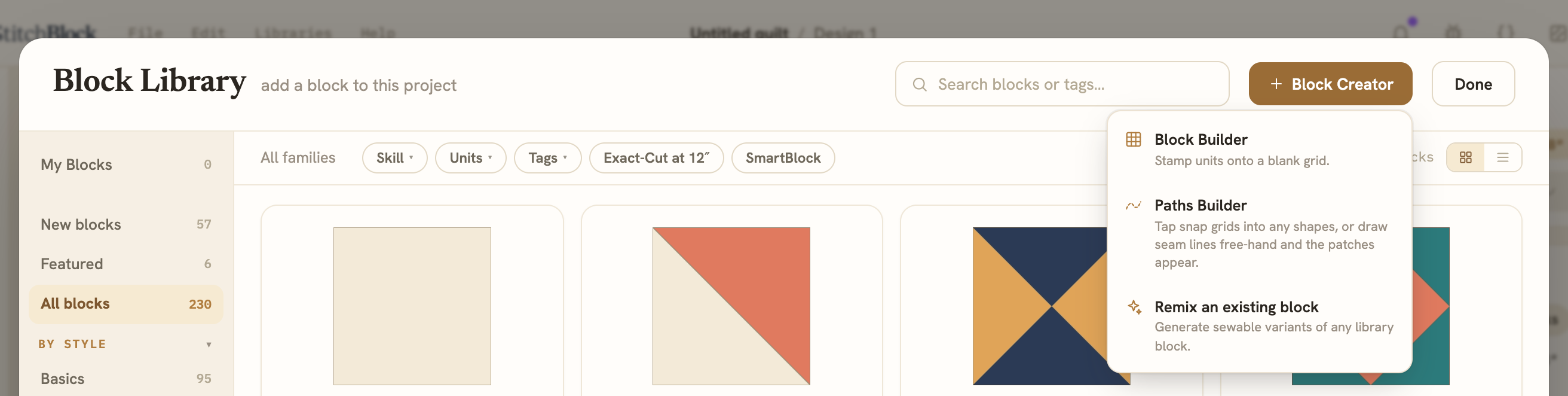
Block Builder: stamp units onto a grid
In the Block Builder you pick a color, then stamp ready-made units onto a grid: squares, half-squares, two-bars, four patches, hourglasses, flying geese, half-rectangles, snowballs, chevrons, even whole blocks. In Easy every shape is rotary-cut, so you can cut the block you draw with a rotary cutter and ruler. Start from a blank grid, from a precut, or inside a starter block (Sawtooth Star, Simple frame, Nine Patch, Churn Dash, Irish Chain, Ohio Star) and make it yours.
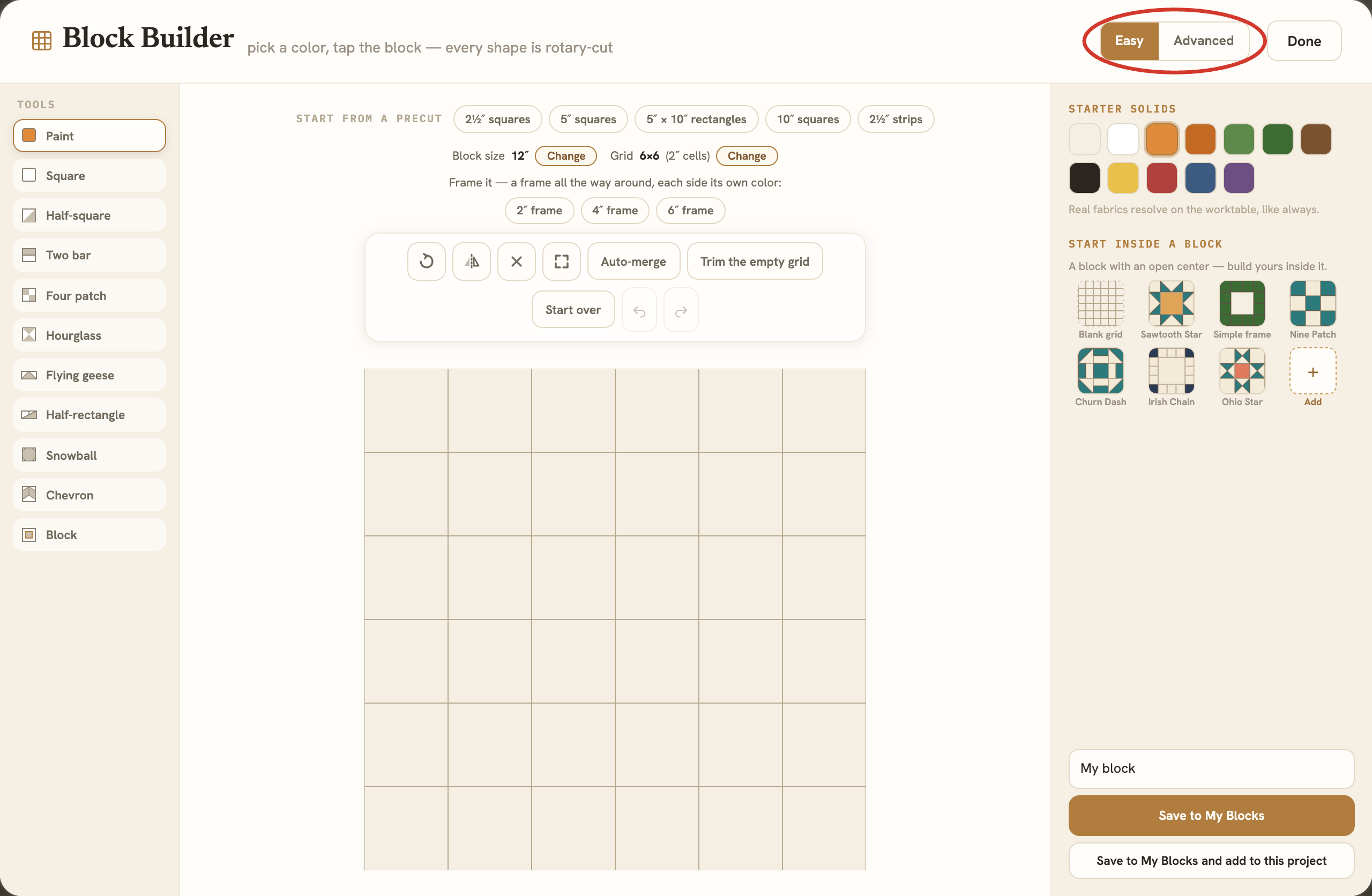
Easy and Advanced (circled above) are two views of the same Builder. You can switch between them any time, and the block stays the same. Easy is pick a color and tap: a short list of shape tools, the starters, a dozen starter solids, and Auto-merge to tidy up.
Advanced has the full set of grid tools. It adds more units with their rotations, painting by fabric role instead of single colors, whole blocks as stamps, and finer control of the grid itself. Two Advanced units, Curve and Tri-in-sq, need a printed template for one piece.
Start from a precut
Have a charm pack, a layer cake, or a roll of strips? Across the top, Start from a precut asks which one, and the row changes to blocks drawn around that piece.
For 2½″ squares: a Nine Patch, a pine tree and a Trip Around the World. For 5″ squares: a snowball, a pumpkin whose body is one 5″ square, a house, a tree, a Christmas ornament and a bow tie. For 5″ × 10″ rectangles: a heart made of two, a house and a boat. For 10″ squares: a heart cut from one square, a bigger snowball and a bigger pumpkin. For 2½″ strips: rails, coins and the same pine tree.
Each chip says the block size it is made for. The pumpkin’s chip says it is made for 5½″ blocks, with a body of one 5″ square and a stem cut from another. Tap a chip and the block opens complete on the canvas, ready to paint. Save to My Blocks keeps it like any starter. Done just closes the Builder.
The block itself has no size. Set your quilt to the made-for size and the block cuts from the precut. At any other size it is the same picture cut from yardage.
In My Blocks the block has a chip saying which precut it cuts exactly from and at what size (“2½″ squares or strips · exact at 14″”). If the block uses a print from that pack in your Project Fabrics and the quilt is within 2″ of that size, SmartBlock Review’s Before you sew list says so. Fix sets the blocks back to that size, and Keep this size leaves them. A block cut from yardage never gets that row, and neither does a quilt far from the size.
Tip: Snowball corners don’t all have to be the same size. In the Snowball Corners panel, tap a flipped corner again for a bigger corner there alone. That is how the heart gets small shoulders and a big point in one square. A strip works too. A snowball one cell wide with two opposite corners flipped is a parallelogram. Two of them mirrored make a chevron star point, the way Blackford’s Beauty is sewn. The Chevron tool lays both arms in one tap, and tapping a chevron turns it.
Paths Builder: draw the seams
The Paths Builder makes blocks the grid can’t. With Draw patches you tap the points around each piece. With Draw seams you draw the seam lines, and the pieces appear between them. When you save your block, StitchBlock tells you whether its pieces can be rotary cut using the Cut Sheet or need printed templates, and whether the block can also be sewn using foundation paper piecing (FPP). Those papers print from the Binder’s Foundation Paper Piecing sheet. See Which blocks are paper pieced, and how?
Remix an existing block
Remix an existing block makes sewable variations of a block, good for trying ideas before you refine one. It is offered for grid blocks, diamond star blocks and Paths Builder drawings, and not for appliqué blocks.
Where your blocks live
Saved blocks go on the My Blocks shelf in the Block Library. In the Block Builder, the second save button, Save to My Blocks and add to this project, also puts the block in this project’s Blocks panel. From there you arm it and paint it like any other block. See Place blocks on the quilt.