Place blocks on the quilt
The block library, adding to project blocks, arming a block and painting cells.
Design Your First Quilt in StitchBlock | Beginner Tutorial 02 Watch on YouTube, bigger and with chapters
Blocks live in two places: the block library and your project.
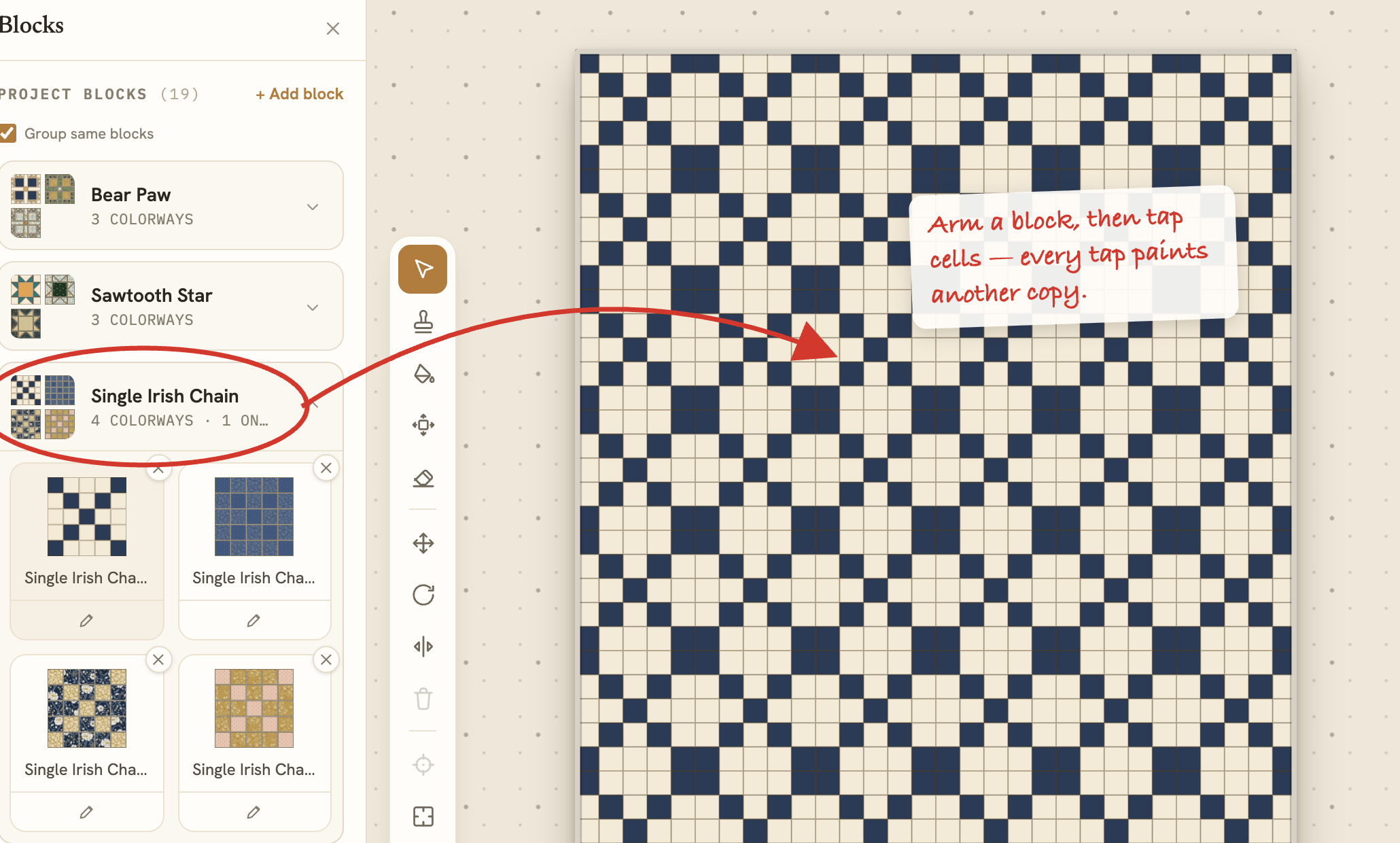
The Blocks panel holds the project’s blocks. These are the ones you can place. The block library (Libraries → Blocks) is the bigger collection. Its shelves hold the app’s own blocks, which stay as they are, and your own My Blocks shelf sits first. To use a library block, tap + Add on it. The button changes to In project ✓ and the block appears in the Blocks panel.
To place a block, you arm it and then paint with it:
In the Blocks panel, tap a block to arm it.
Tap cells on the quilt to paint the armed block into them, as many cells as you like.
Arm another block and keep going.
One armed block paints as many cells as you tap, so you can arm once, paint the whole background, then switch. To fill every empty square with the armed block, tap Fill empty squares with selected at the bottom of the panel. On a Single Block quilt you skip the painting: tap a block in the panel and it becomes the quilt’s block.
Tip: Done placing? Press Esc, or tap the armed block again in the panel, to put it down without painting another cell.
To change a placed block’s piecing, tap it on the quilt and tap Edit this block on the Inspector tab. That opens the block editor. On a computer, double-clicking the block is a shortcut to the same place.
Blocks already on the open design show shaded in the panel. White tiles haven’t been placed yet. When the same block is in the project in more than one colorway (the same block painted differently), the panel puts those versions into one folder. Tap the folder (or its chevron) to open it, then arm or drag the colorway you want. Group same blocks at the top of the panel turns the folders on and off.