Keep your favorite Help pages — My Help Shortcuts
Save any Help page to your own shelf, keep notes beside them, and print the lot for the sewing table.
Some pages earn a spot over the sewing table — the symbols page while a pattern is new, the walkthrough while your first quilt is underway. My Help Shortcuts is your own shelf for them, right in Help’s left menu.
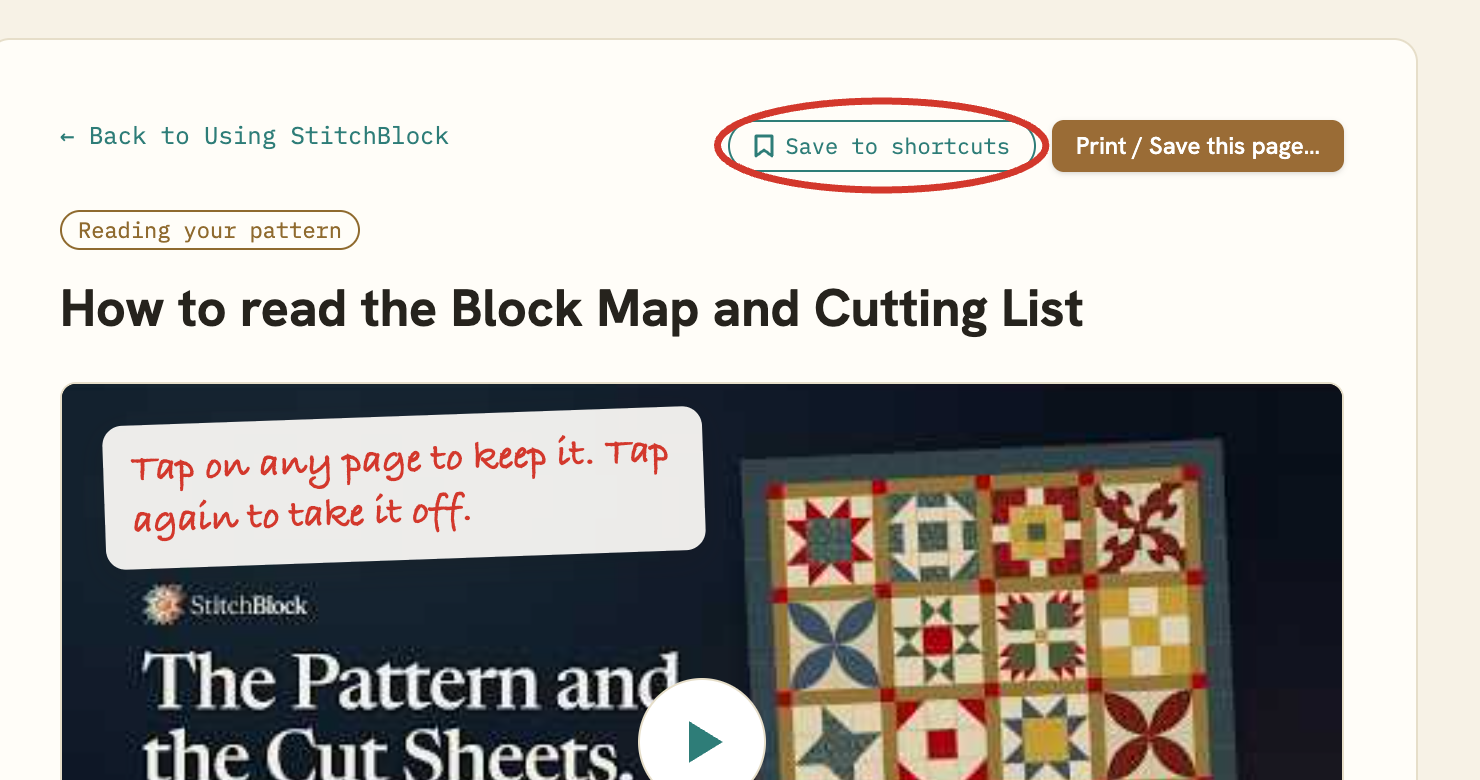
Open any Help page and tap Save to shortcuts at the top. The button fills in so you can see it took — tap it again to take the page back off.
Find everything under My Help Shortcuts in the left menu — your saved pages, ready to open with one tap.
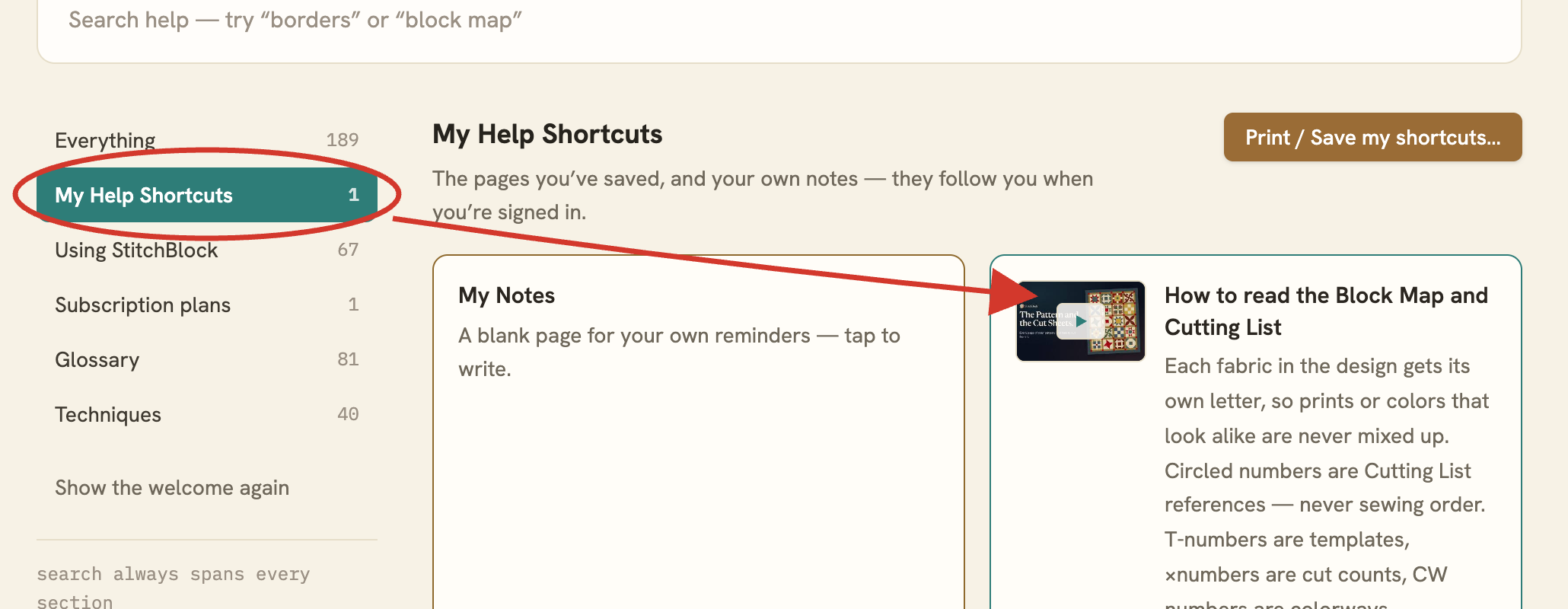
My Notes — a blank page of your own
My Notes lives on the same shelf: a blank page for thread numbers, cutting reminders, questions for the quilt shop. It saves as you type, and it’s always there whether or not you’ve saved any pages.
They follow you, and they print
Signed in, your saved pages and notes travel with your account — save on the tablet at the sewing table, and they’re waiting on the computer too. And the Print / Save my shortcuts… button puts your saved-pages list and your notes on paper, ready to pin up wherever you sew. The worktable itself is covered the same way — see Understanding the Worktable.
Tip: Save How to read the Block Map and Cutting List first — it’s the page everyone wants back at the cutting table.