Paint fabrics onto your quilt
Arm a swatch in the Fabrics panel, then paint patches, blocks, sashing, borders, and binding.
Design Your First Quilt in StitchBlock | Beginner Tutorial 02 Watch on YouTube, bigger and with chapters
You paint fabric the same way you place blocks: arm it, then tap the quilt.
Fabrics are in two places: the Fabric Library (Libraries → Fabrics), which holds every fabric, and your project’s Fabrics panel. Add to project brings a library fabric into your project, and it shows in the panel. Every design in the project shares the panel, so it shows the same fabrics whichever design you have open.
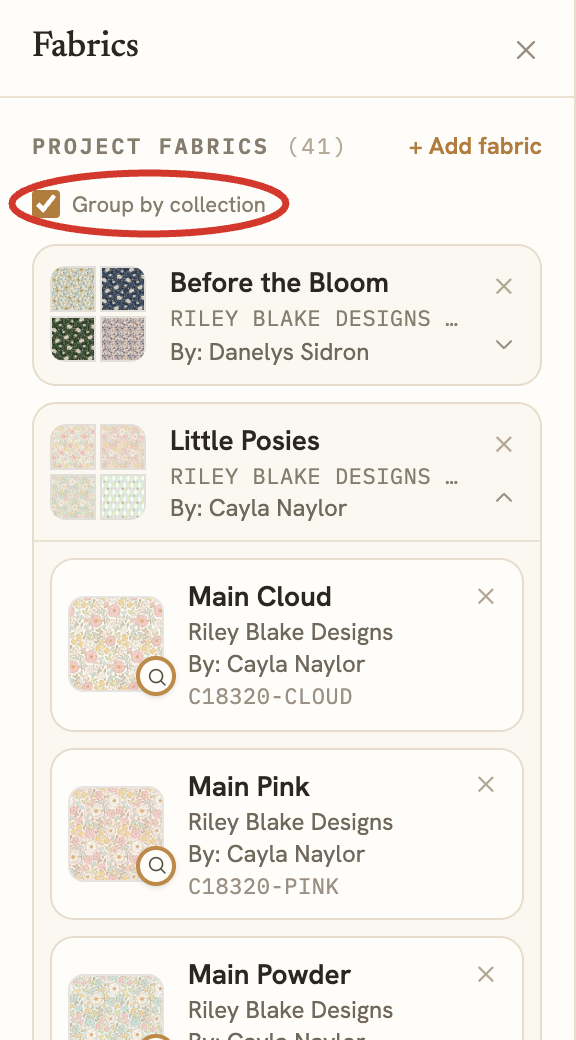
Group by collection, at the top of the panel, puts your fabrics in folders by collection. Solids, blenders, and prints from the same line sit together, whether you added them one at a time or as a whole line. Fabrics without a collection stay loose at the bottom, and precut packs always keep their own row. Turn it off to see one flat list.
The placeholder colors your blocks start with are not fabric, so they never show in the panel. Add your own fabrics and paint over them. The Pattern's Needs attention list counts any patches still in a placeholder color.
Arm a swatch in the Fabrics panel, then tap the quilt. While a swatch is armed, a pill at the top left reads “Painting” beside the swatch you armed. It has one choice, how far a tap reaches: This block, Matching blocks, or Band. Band paints the whole band the tapped block is in: a round, a diagonal, a row, a block of color. See Bands: paint a whole round, row or diagonal in one tap.
Matching blocks, or This block

The choice on the pill decides how far a tap reaches. Matching blocks is regular coloring. Tap a patch and every piece doing that job in the block takes the fabric, on every copy of the block that still shares its colors. Scatter Fabrics can deal those pieces again later. This block paints only the patch you tap, on only that block. That block keeps its own colors from then on, and pieces you paint one by one this way stay put through every scatter.
That is also how you make a colorway. Paint a patch with This block and that copy becomes its own colorway. Place one block twice, paint the copies differently, and the pattern names them CW1 and CW2 so you can tell them apart. Painting with Matching blocks recolors the whole group together, so it makes no new colorway. A combination you like can be saved to My Blocks and placed like any block. The CW numbers on the printed page are explained in How to read your pattern.
Fussy cut a print
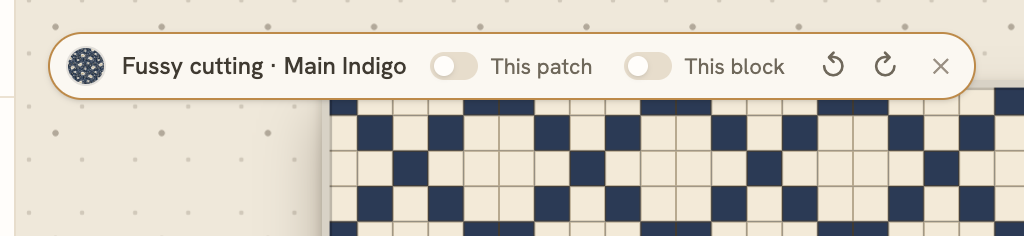
A print can be placed inside a patch, not just painted onto it. Tap the Fussy cut tool on the tool palette, tap a printed patch, and drag to slide the print until the motif you want sits where you want it. The bar’s two switches say how far the placement reaches: This patch or Matching patches, and This block or Matching blocks. ↺ and ↻ turn the print 15° per tap, and shift+drag does the same at a keyboard. Esc or the ✕ puts the tool down.
Quilts of one repeated shape paint the same way
Diamonds, rectangles, hexies, tumblers, and triangles are regular quilts. Each is one repeated shape instead of pieced blocks, and every block paints directly. The same choice applies: Matching blocks recolors every block now showing the tapped block’s fabric, and This block recolors only the block you tap.
Baby Blocks paints the same way with one difference: each cube has a top, a left, and a right face, and the three faces are separate matching groups. That keeps the 3-D shading. Painting a top face with Matching blocks recolors matching top faces only. The left and right faces keep their own colors.
Fill every empty block
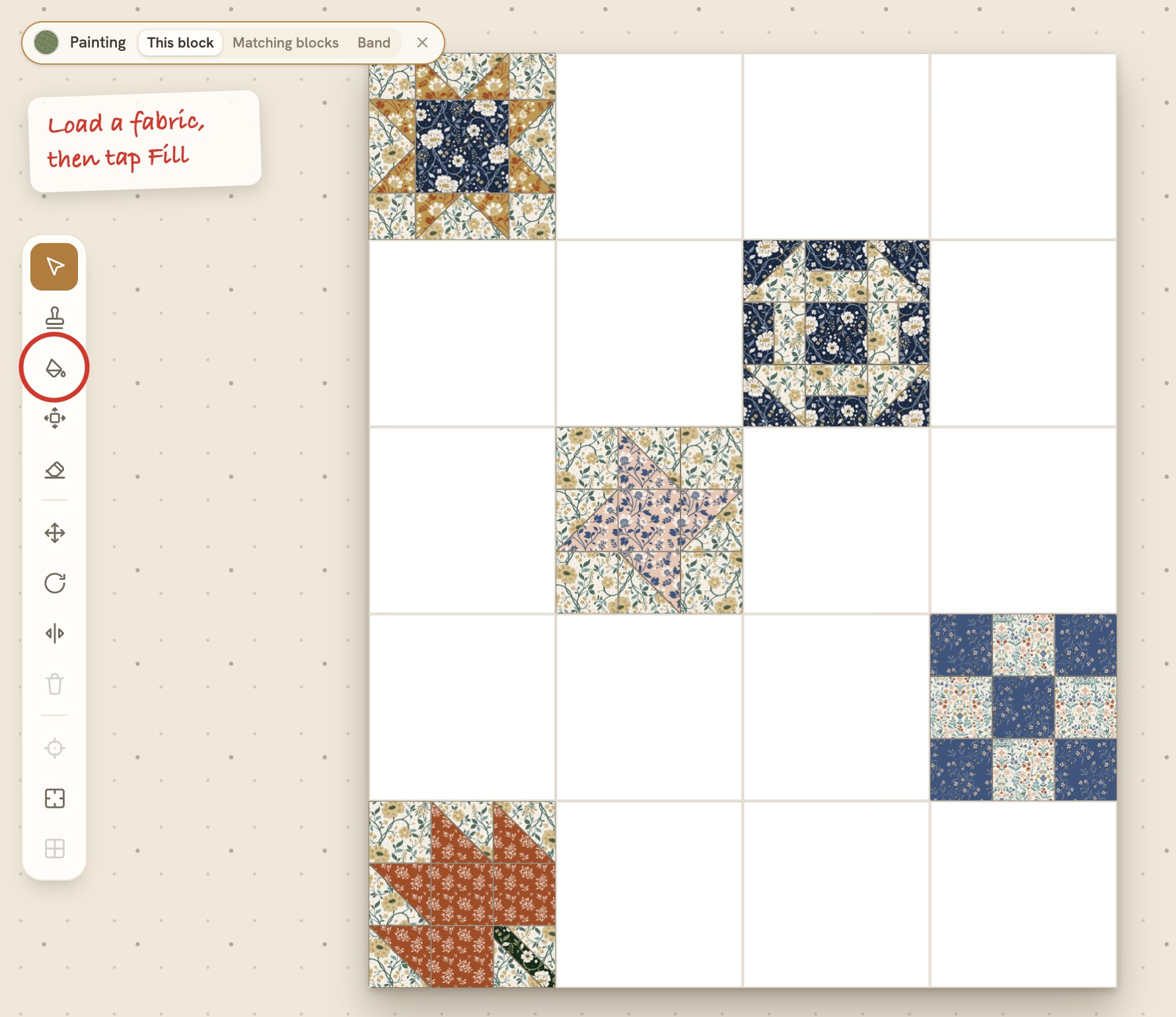
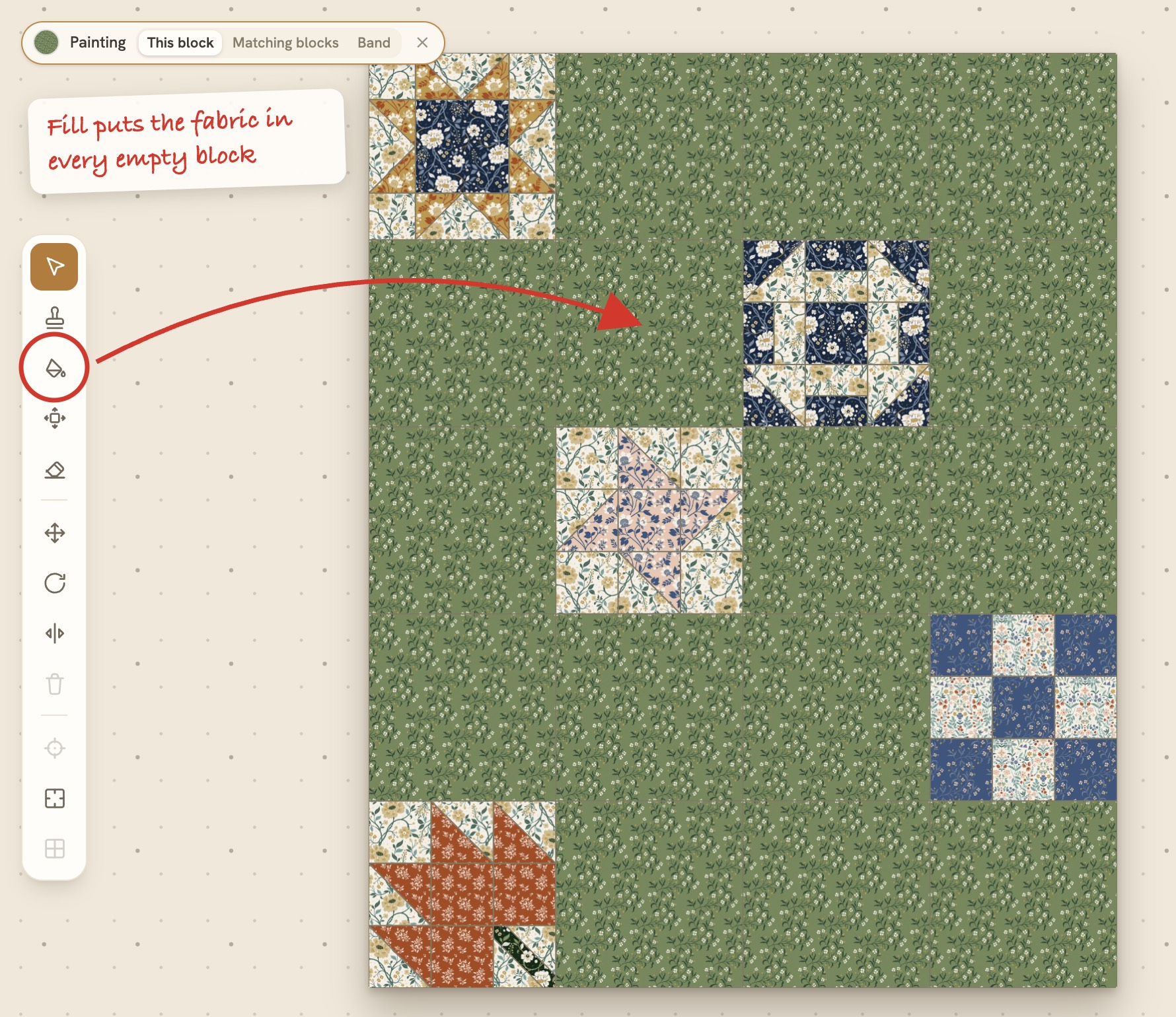
With a fabric armed, tap Fill on the tool palette. Every empty block on the quilt takes a plain square of that fabric. On a quilt of one repeated shape, every unpainted hexie, diamond or triangle takes it too. The blocks you placed stay as they are, so Fill is the quick way to fill the background around a few blocks or the gaps between bands. One Undo takes the whole fill back.
Taking a fabric back off
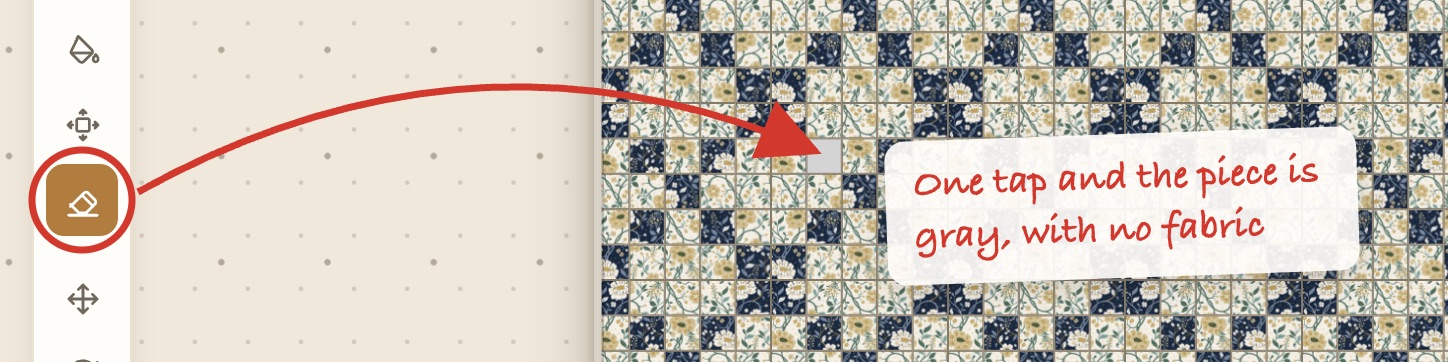
Remove fabric, on the tool palette beside Fussy cut, takes fabric off the quilt. Tap a painted piece and it goes back to unpainted: gray, with no fabric, and the cut list stops counting it. If the fabric is on other pieces too, one question names the fabric and counts the pieces it is on, with two answers: Everywhere or Just this piece. The fabric stays in your Fabrics panel either way, and Undo puts it back on every piece.
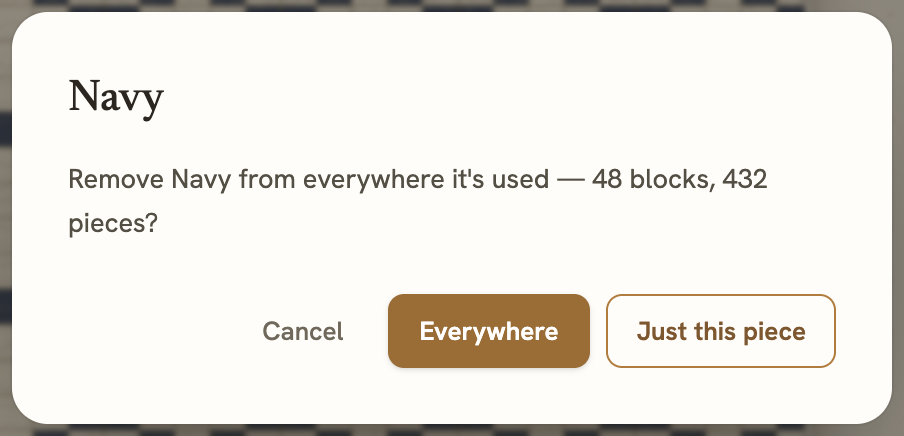
The ✕ on a fabric’s row in the Fabrics panel takes the fabric out of the project and leaves the quilt alone. A fabric that is still on a quilt in the project stays in the panel until it is off every piece. A fabric inside a precut pack has no ✕. Edit → Clear all fabric from blocks… takes the fabric off every block and leaves the blocks gray, starter colors included. Borders, sashing, binding and backing keep their fabric.
Stopping
The ✕ on the pill collapses it, and painting stays on. To stop painting, tap your color again or press Esc.
Everything takes color the same way: patches, whole blocks, sashing, borders, binding, backing.