How your precuts get used (Fabric-Fit)
With no pack in the project, see what each precut size would cut. With a pack, read its card: what to buy, what it cuts, and what cuts from yardage.
StitchBlock Fabric-Fit: Precuts, Fat Quarters & Scraps Watch on YouTube, bigger and with chapters
A precut is fabric sold already cut to a standard size. A strip roll (such as a jelly roll) is 2½″ strips, a charm pack is 5″ squares, a layer cake is 10″ squares, and there are 5″ × 10″ rectangles and more. Fabric-Fit, on the Inspector’s SmartBlock tab, does one of two jobs. With no pack in the project, it shows what each precut size would cut. Once a pack is in the project, it shows what that pack does.
No pack yet: explore a size
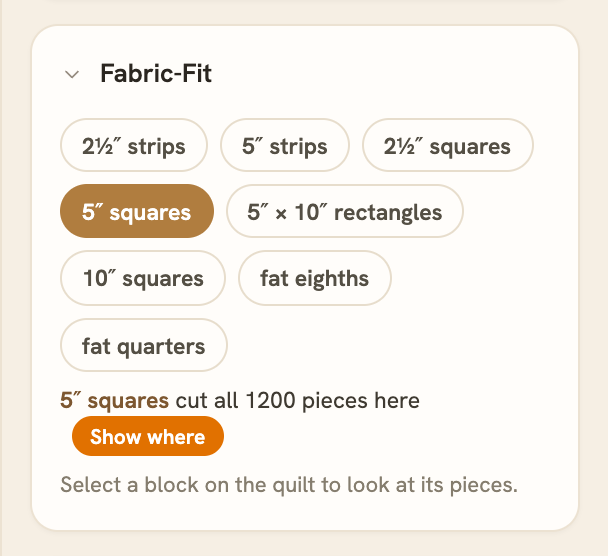
Open Fabric-Fit on the SmartBlock tab. It is a row of size chips: only the sizes that cut at least one piece on your quilt.
Tap 5″ squares. The worktable hatches every piece a 5″ square can’t cut, in every block, painted or not. What stays plain cuts from that size. On a heart, the corners stay plain and the point is hatched.
Under the chips, one sentence says what that comes to: “5″ squares cut 138 of 142 pieces here.” Show where, beside it, turns the hatching off and on.
Tap the chip again, or tap anywhere on the quilt, and the hatching clears.
This is only a check, and nothing is saved. The squares to buy and the pieces left for yardage come with the pack card.
A closer look at one block
Tap a block on the quilt. Its picture opens under the sentence with how many of its pieces the size cuts: “Heart · 8 of 9”.
Tap a piece in the picture. Everything that cuts with it is picked too. The chips narrow to the sizes that cut it, and each chip says how: as is, cut to size, or trimmed to size. The sentence narrows too: “5″ squares cut 2 of these.”
Tap the quilt again to go back to the whole quilt.
When another block size would make that piece an exact pack piece, the line under the picture offers it. Tap the size and every block on the quilt changes to it.
Cornerstones
Sashing cornerstones and each cornerstone border get a line of their own, because they are not block pieces and they are perfect spaces for a mini charm. The line says how many there are and the cut size: “Sashing cornerstones · 16 squares, cut 3½″”.
When a width would make one an exact pack piece, that width is a tap: “exact fit at 2″ for 2½″ squares, 4½″ for 5″ squares.” Tap 2″ and the sashing, or that border, becomes 2″ wide. Every cornerstone then cuts as one mini charm with nothing to trim. Undo puts it back.
Fat quarters and fat eighths
Fat quarters and fat eighths are in the same row. They are a way to buy yardage, not a piece to cut from. Tap one and Fabric-Fit lists every fabric with the number it needs, such as Natural 4 fat quarters. When a piece is bigger than a fat quarter, it says that fabric buys as yardage.
A pack in the project: read its card
Once a pack is in the project, the app uses it the way you would at the cutting table. Every block piece one of its prints fits comes from the pack, up to what the pack holds of that print. Whatever is left over cuts from yardage. To add a pack, see Bring a precut pack into your project.
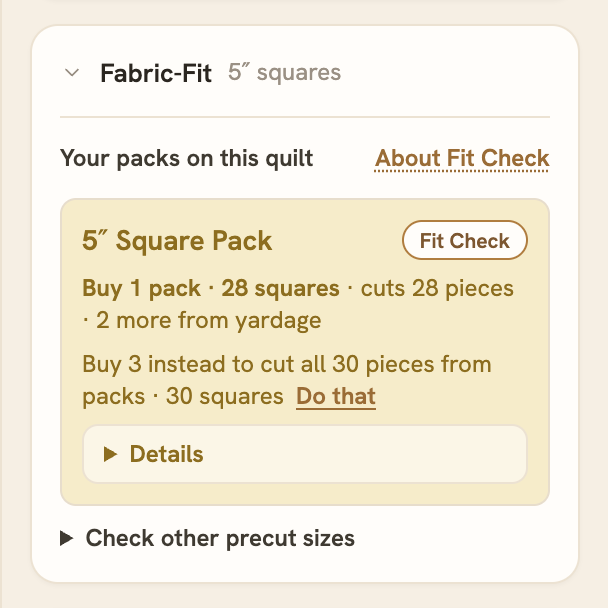
Under Your packs on this quilt there is one card per pack size. Its headline is the size with a pill beside it. Fit Check means the quilt has pieces that size cuts. Tap it and the worktable hatches every piece that size can’t cut, painted or not, so what stays plain is what the pack cuts. Tap again to clear it. No fit means no piece on the quilt is that size.
Under the headline, one line says what to buy and what the pack cuts: “Buy 2 packs · 62 squares · cuts 118 pieces · 20 more from yardage”. It reads From My Stash when you already own the pack.
If some of the pack’s prints are on pieces the pack can never cut, a triangle for example, another line counts them and says they cut from yardage. A fat quarter bundle’s card has no such line: those pieces are already in its from yardage count. “Short 3 of Sunflowers Latte” shows in the rare case a pack you own runs short.
When you paint a print more times than its pack holds, the brush asks: Add yardage, Buy another pack, or Cancel to pick another print. If you chose Buy another pack, the card says so: “Buying 2 packs by your choice,” and the Supply List and the pattern buy two. Back to the fewest returns to the count the cuts need. The app never raises the count on its own.
Details
Details starts closed. It has one section per pack: the pack’s name, then a pill. The pill in stash · 42 · use it is the switch for using the pack you own. Tap it and it reads using stash · 42. Tap again to buy the pack instead. A pack you do not own reads buy 1 pack.
Under the pill is what that pack buys for this quilt, then the contents note. Once the pack is using stash, the note comes from what you recorded in My Stash.
Record print quantities opens the pack’s own sheet right there, and records the pack in My Stash if it was not there. The sheet asks whether you have at least one of each print, then you tap what is in your pack. Once My Stash has the pack, the link reads Edit print quantities. Two packs of one size each have their own. See Precuts: how the app knows what a pack holds.
Under the packs is the list of what cuts from yardage, print by print, and any print you chose to cut from yardage yourself. One line covers all the prints: “23 prints · 118 pieces from the pack · 20 from yardage”. Change prints, beside it, opens the prints as swatch tiles. Tap a print to move it between the pack and yardage. The badge says which, and Done closes it.
The pieces from yardage are not a warning. They are on each fabric’s own row in the Supply List, priced like any other cut.
Under the cards, Check other precut sizes opens the size chips again, to see whether another size would suit the big pieces.
When the pack runs out, or can’t cut the piece
Paint a print from the pack row. At the stroke that uses more of that print than the pack holds, the app asks on the spot: Your 5″ Square Pack runs out of this print here.
Add yardage puts the print in the project by the yard and the stroke stays. Buy another pack raises the pack count by one and the stroke stays. Cancel takes the stroke back off.
Painting a pack print onto a piece the pack can’t cut asks at that stroke too: Add yardage or Cancel.
When the pack’s print quantities are only assumed, the question waits until the pack’s leftover pieces are used up. It adds Print quantities vary, with Read Precuts beside it.
When one tap painted many pieces at once, the question says so first: Matching blocks is on, so this one tap paints 49 pieces. Your 5″ Stacker holds 2 of this print. It does the same when Band is on, when Fill paints every empty block, and when you paint the block in the Block Editor, which paints every copy.
A fat quarter bundle works like any other pack. Each print’s fat quarter cuts what it can. The rest cuts from yardage on that fabric’s own row in the Supply List (as fat quarters, if your binder is set to them). The bundle asks one thing only, at the stroke its fat quarter can’t hold: Add yardage of this fabric? The buttons are Add yardage and Cancel. It never suggests another bundle or another fat quarter.
When a print is in both a pack and a fat quarter bundle, the pack’s remainder goes to that fat quarter on its own. Nothing is asked until the fat quarter runs out too. A print you armed from the yardage row of the Fabrics panel never asks. It cuts from yardage on this quilt by your choice.
Changing the quilt asks too
Change the block size, add rows, change the setting or the block, or size the quilt to a bed, and the app compares the packs before and after. If the packs covered a print before and can’t now, the app asks once the change settles.
When the piece does not fit the pack now, it reads: Your 5″ Square Pack can’t cut Blue’s pieces at this size (cuts 12½″ × 12½″). The answers are Add yardage (the pack still cuts what fits, the rest is priced) or Put it back.
When the piece fits but the packs do not hold enough, it reads: Your 5″ Square Pack runs out of Blue here. The answers are Buy N packs (the count that cuts everything, kept as your own), Add yardage, or Put it back. A fat quarter bundle offers Add yardage or Put it back.
It asks once, on the change that crosses the line. A print already past the line stays with the Precut attention pill and Review, and it asks again only when a later change crosses the line again. Opening a design is not a change.
Keeping a pack out of a block
Most quilts never need this. To save your charms for one block and cut another block from yardage, open Details on the pack card. The last line reads Using the pack for every block. Tap Change, then tap the box beside a block. That block now cuts from yardage. Tap the box again and the pack covers it again.
A fat quarter bundle has the same line, and it names the bundle. Pieced borders and cornerstones are not block types, so the bundle still cuts them.
Strip rolls cut strip pieces
A rail, a log, a string: any piece the cut list cuts as a strip is a rectangle to a pack. A 2½″ strip roll cuts it. A piece the strip’s own width is cut from the strip at its length. A piece half that wide, such as a 1¼″ log, is a length cut from the strip and then cut in half lengthwise. A 5″ square cuts rails too (four 1¼″ × 2¾″ rails from one square), and can’t cut a rail longer than itself.
So with a strip roll in the project, a Rail Fence or a Log Cabin cuts its rails and logs from the roll. Fit Check leaves them plain, and the cutting pages print a row such as “Cut 2½″ × 9″ strips from the roll”.
One-patch quilts
Fabric-Fit and the pack cards work on a one-patch quilt too. A fat quarter bundle and 10″ squares cut diamonds, squares and bricks. Hexies are cut from templates, so no precut size fits them.
What the pattern does
The pieces the pack covers come off that fabric’s yardage. The pack joins the Supply List as one line you buy. It shows the pack by its manufacturer’s name and size, “12 squares used” under it, and the packs to buy as the amount.
The cutting pages say to pull those pieces from the pack, in a row such as “Pull 5″ squares”. Each row counts its own pack pieces. When a piece is split or trimmed, the page shows the cuts on the piece the way any subcut is shown. The pieces from yardage stay in the ordinary cutting rows beside them.
Change the block size so a piece does not fit its pack, and that piece cuts from yardage on every page at once.