Add a border
Border rounds, cornerstones, and the four styles: straight vertical, straight horizontal, mitered and scallop.
StitchBlock Layout Tab: Sashing, Borders, Binding, Backing, Batting & Thread Watch on YouTube, bigger and with chapters
Borders live in the Layout tab’s Borders section.
+ Add Border adds a round. Borders stack as Border 1, 2 and so on, working outward. Each one shows the finished quilt size with that round on, so you can watch the quilt grow as you add.
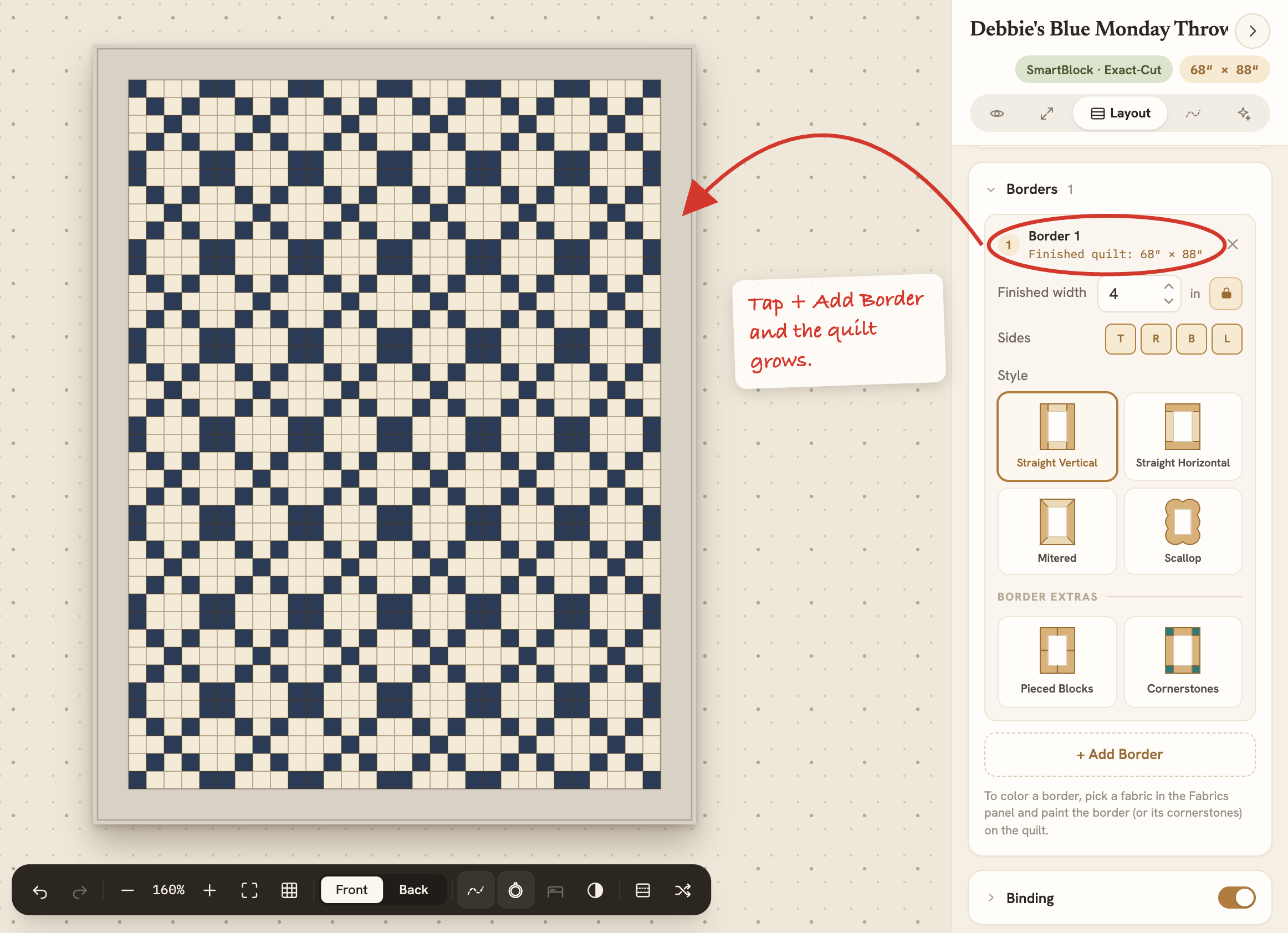
What you set on each border
Finished width: in ¼″ steps, up to 16″. One width goes on every side. Tap the lock beside the box and it opens into four boxes, Top, Right, Bottom and Left, so a foot border can be deeper than the side borders.
Sides: four small buttons, T R B L, all on to start. Turn one off and that side has no border. The neighboring strips run to the bare edge, and the quilt gets shorter or narrower by that width. The cut list, yardage and assembly print only the strips that are there. A border missing a side is butted at its corners, so the Mitered and Scallop tiles gray out and say so.
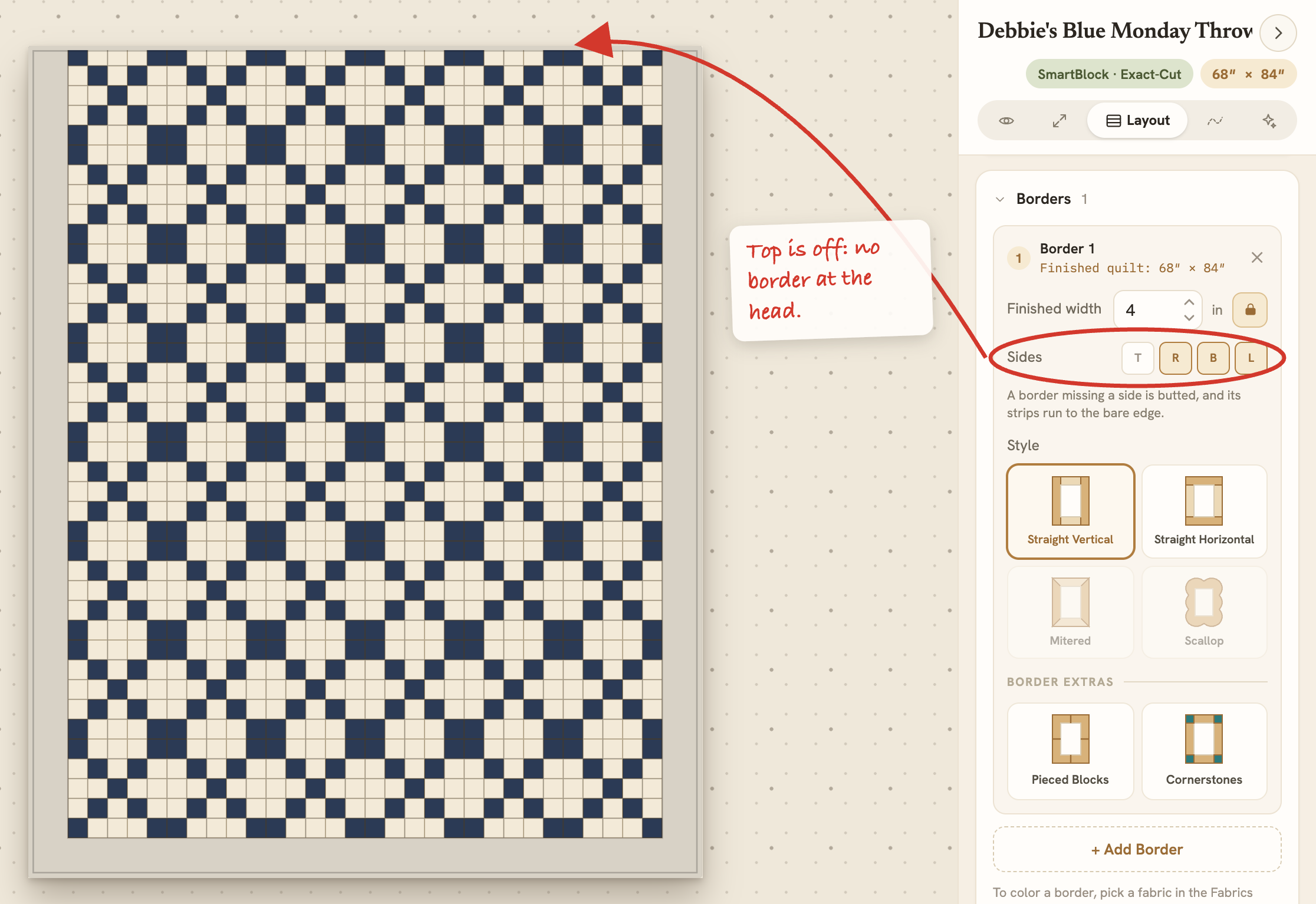
This is how a bed quilt keeps its head bare: blocks on the mattress, two or three borders on the sides and foot making the drop, nothing at the top.
Style: four tiles: Straight Vertical, Straight Horizontal, Mitered, Scallop. Scallop is only offered on the outermost border. Once a border is scalloped, + Add Border turns off and the app says why: a scalloped border must be the outermost edge.
Border extras: two tiles. Pieced Blocks divides the border into pieced blocks, and on a straight border it turns Cornerstones on too. It has its own topic: Design a pieced border. Cornerstones puts square cornerstones at each corner, on straight styles only.
Color and removal
Color comes the usual way: arm a fabric in the Fabrics panel and paint the border, or its cornerstones, right on the quilt. Remove a border with its ✕.